
The wallet Solana runs on.
The official browser wallet from Jupiter. Trade cheaper, earn automatically, and manage your entire Solana life from your sidepanel.
Non-custodial. Your keys never leave your device.
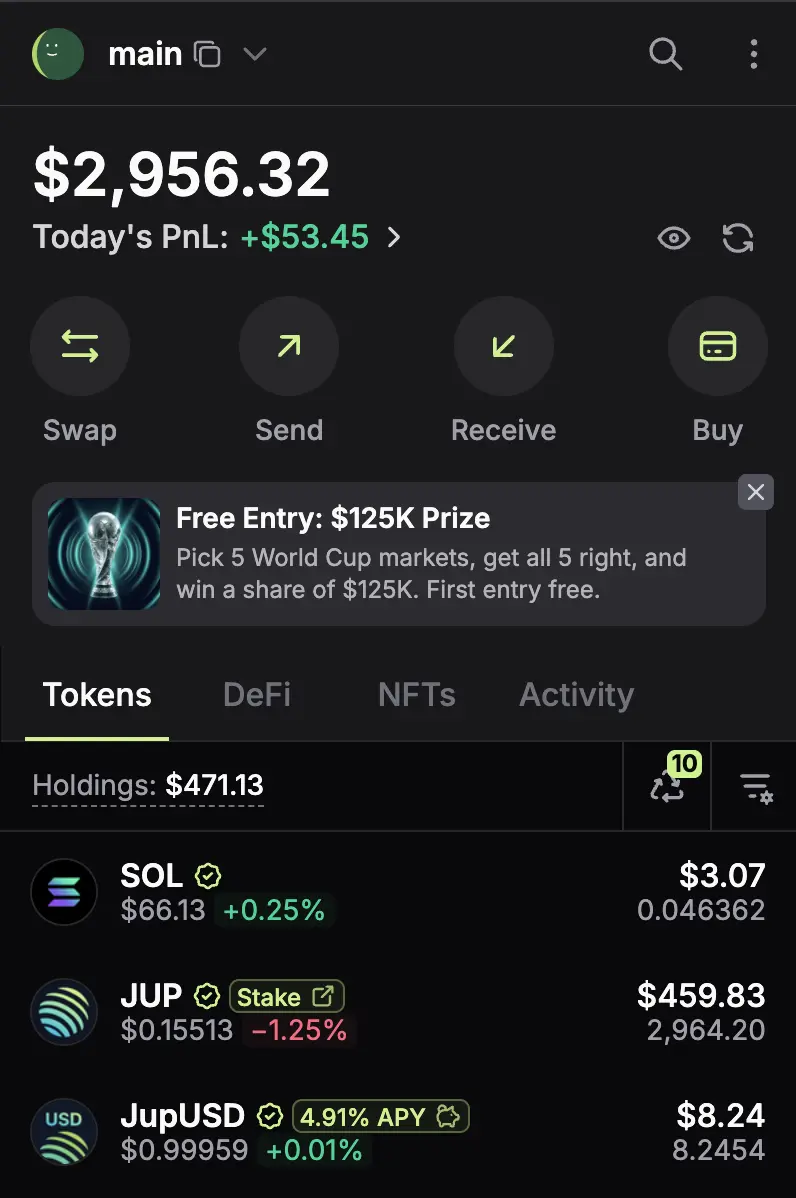
V1 stored your Solana. V2 runs it.
V2 removes the largest pain points that users face: cost, friction, and fear. It's the easiest way for anyone to use Solana.
Get more from your swaps, every time.
Every swap routes through Jupiter Ultra for the best price and lowest slippage — the same engine other wallets call, without the middleman.
Never get stuck in your wallet again. Gas is taken from any token you're already using.
Other wallets tack on up to 85 bps plus the routing fee, for no added benefit. We just charge you for the routing.
Toggle on Auto-Earn to generate yield from your stables, or close empty token accounts to reclaim Solana.
Built for how you actually trade.
Scan once and your Jupiter Mobile becomes your extension, and back again. No re-keying, no new seed phrase.
Enable once for a frictionless trading experience across Jupiter and Meteora, with per-transaction limits you control.
Buy straight from X, Google, Yahoo Finance, ChatGPT, Claude and Gemini. The internet becomes your trading terminal.
Track every dollar across Solana protocols in one place, with a built-in Airdrop Checker that tells you when you’re eligible.
Active defense, not passive storage.
Use the cold storage you already trust: Ledger, Keystone, or Trezor.
The wallet reads what you're about to sign and warns you before a drainer does damage.
Continuously audited and tested by Offside Labs.
Frequently asked questions
Everything you need to know about installing, funding and using Jupiter Wallet.
Install the Jupiter Wallet extension from the Chrome Web Store, then select Create new wallet and complete the setup.
To add funds, select Receive to transfer Solana tokens to your address, or Buy to open Jupiter's funding options in a new tab. For more details follow the getting-started guide.
Yes. Open the wallet list, then Add New Wallet → Import Existing Wallet. You can import a 12- or 24-word seed phrase or a private key. You can also add a Watch Address to track any wallet without access to its keys.
Your assets stay at the same Solana address. Importing gives Jupiter Wallet access to that account; it does not move your funds onchain. For more details and troubleshooting, check out the import guide.
Jupiter Wallet charges no additional fees, unlike other wallets that add up to 0.85% (85 bps) on top of the underlying routing fees. Not only is Jupiter Wallet the cheapest, it is also the quickest to use, built by the team behind Jupiter Exchange.
You can swap and send tokens on Solana gaslessly, make limit orders or recurring orders, earn yield via Auto-Earn on idle tokens, view your DeFi positions, bridge from other chains and more — all in one place. Easily import from Jupiter Mobile with the scan of a QR code via Jupiter Sync, while Jupiter ID lets you sign in with email or social login instead of a seed phrase. See moving from another wallet for the full walkthrough.
Jupiter ID is Jupiter's email or social sign-in, shared across Jupiter Wallet, the web app and Jupiter Mobile. It creates a wallet you reach by signing in, rather than by holding a seed phrase.
You can have one active Jupiter ID account at a time. Jupiter ID wallets cannot be exported through Jupiter Sync, and are not eligible for Auto-Earn.
Solana transactions require SOL to pay network costs. For eligible swaps and token sends, Jupiter Wallet covers those costs for you and deducts the equivalent from the token you receive. It activates only when needed, rather than on every transaction.
Some actions are never gasless and need SOL in your wallet: NFT transfers, limit orders and recurring orders. The wallet shows a low-balance warning when your SOL is running short.
When enabled, Auto-Earn checks your balances hourly and deposits the full balance of each token you've selected into Jupiter Lend's Earning Vaults once it exceeds the threshold you set (minimum 10 tokens). Eligible tokens are those with a Jupiter Lend Earn market. Yield comes from interest paid by borrowers and changes with market conditions.
Auto-Earn is available for wallets created or imported via seed phrase or private key. It is not available for Jupiter ID, hardware or watch-only wallets. Turning it off stops future deposits; existing deposits stay in Lend until you withdraw. See the Auto-Earn guide.
Yes. The wallet home has four tabs — Tokens, DeFi, NFTs and Activity — covering your balances, supported DeFi positions (lending, liquidity and staking), your NFTs and your transaction history.
You can view and send supported NFTs from the NFTs tab; NFT transfers are not gasless and need a small amount of SOL. The DeFi tab helps you locate positions that don't appear as spendable tokens. See portfolio and holdings.
Auto-Approve lets you trade on trusted first-party sites without approving every transaction. It covers Jupiter, Meteora and Orb, each toggled separately under Settings → Preferences → Auto Approve. Jupiter is enabled by default; Meteora and Orb are off until you turn them on.
You can set an optional per-transaction spending limit in USD — anything above it still asks for approval. Auto-Approve makes repeated trading faster but removes the chance to review each transaction before it is signed, so review the limit and the enabled sites if you'd rather approve manually. Hardware wallets always prompt for approval, even with Auto-Approve on.
Yes — Ledger, Keystone and Trezor. Open the wallet list, then Add New Wallet → Import Existing Wallet → Hardware Wallet.
Hardware wallets keep their signing keys on the device, and every transaction is authorized through the device's own approval process. Hardware wallet support requires a Chromium-based browser (Chrome, Edge, Brave) — it is not available in Firefox.
Jupiter Wallet is a self-custodial browser extension for holding assets, approving transactions and connecting to Solana apps. The Jupiter website, jup.ag, is the home for onchain finance, with Spot, Lend, Perps, Predict and more.
You can use Jupiter Wallet to connect to those products directly, while swaps, limit and recurring orders, portfolio tracking and other features are also available natively inside the extension.
Jupiter Wallet is the browser extension; Jupiter Mobile is the iOS and Android app. Both let you trade and manage your assets — the extension is built for your computer, Mobile for your phone.
Each works independently, but Jupiter Sync lets you move a wallet between them without re-entering your recovery phrase. In the extension, open the three-dot menu and select Jupiter Sync. In Jupiter Mobile, open Settings → Jupiter Sync and scan the QR code shown by the extension.
Jupiter Sync covers seed phrase and private key wallets. Jupiter ID and hardware wallets cannot be synced — sign in to Jupiter ID directly on each device, and pair hardware wallets per device. See the Jupiter Sync guide for more.
Jupiter Wallet supports all Solana tokens and NFTs.
You can also receive supported assets from Ethereum, Base, Arbitrum and Sui via Universal Deposit. Each network has its own accepted token, minimum deposit and fee, all shown on the Receive screen before you send. Cross-chain deposits arrive on Solana and do not create native ETH or SUI balances inside the wallet. See sending and receiving for more.